

OneDrive
OneDrive is a cloud storage system where you can store, sync, and share all your work and files.
As part of Microsoft 365, OneDrive lets you update and share your files from anywhere and work on Office documents with others at the same time.
This cloud storage system offers up to 100GB of storage space.
Use OneDrive
Accessing OneDrive
To access OneDrive, sign in to Kāpehu and click on the OneDrive icon. If you are signed in to a campus computer, there will be a handy shortcut on the desktop for ease of use.
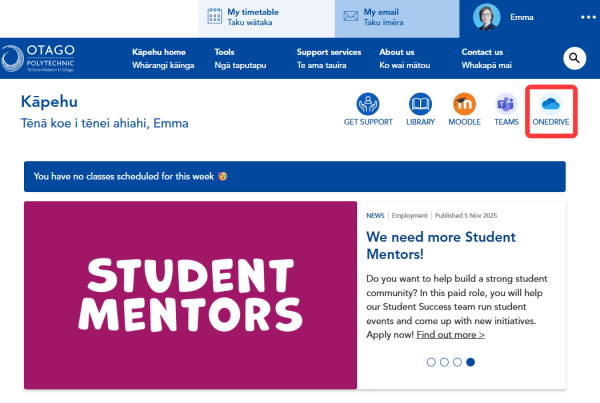
Important tipOneDrive - Otago Polytechnic is different from OneDrive - Personal, which is associated with your personal email accounts. Remember to choose the correct one when saving your work. |
How to use OneDrive
Microsoft 365 offers some comprehensive training videos and quick guides to get you started using OneDrive.
Sharing files
All files that you store in OneDrive are private unless you decide to share them. You can easily share a file with everyone in your organisation by placing it in the 'Shared with Everyone' folder, for example. You can also share files with specified students or staff so that you can collaborate on projects.
When you send email from Outlook you can attach a OneDrive file as a link, instead of sending an attachment. When you attach a file as a link, you automatically give the people you message permission to edit the file. By doing this, you save space in everyone's mailbox and encourage people to edit the same copy in OneDrive.
Download OneDrive
For mobile
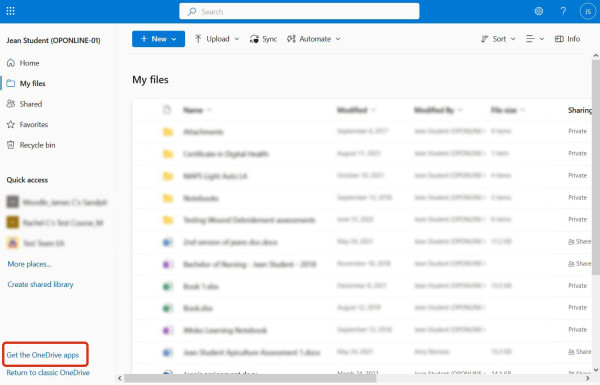
Get the OneDrive mobile app (scroll down the page) to upload from your phone.
For desktop or laptop
You can download the OneDrive client for your personal device by clicking the link on the bottom lefthand corner.
If your PC is running Windows 10, OneDrive may already be installed.
Use OneDrive for assessments
Large files for submission
You can store large files for submission (such as videos) on OneDrive and then share the link with your teachers through Moodle for assessment.
Video assignment submissions
The accepted video formats are .mp4 or .mov only, so markers can view your video.
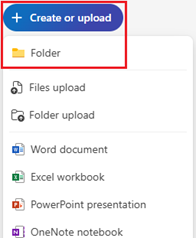
1. In OneDrive, create a new folder and name it.
|
You must name the folder using this format: Assignment title, your surname, and your student ID. e.g. Patient education video - McNamara - 10001234 |
2. Upload your video file to the folder
- All assessment files must be appropriately named using the same format: assignment title, your surname, and your student ID.
3. Create a sharing link
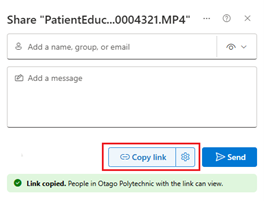
- Click on video file, select Share, then choose Copy Link. If you have more than one video file in the folder, share the entire folder instead.
- Make sure the link settings say: “People in Otago Polytechnic with the link can view” (if it doesn’t, click Settings and adjust the sharing permissions)
Submit link in Moodle
1. Open the correct assignment in Moodle and click Add submission.
2. In the Online text area, paste the link you copied from OneDrive - Moodle should automatically convert it into a clickable hyperlink.
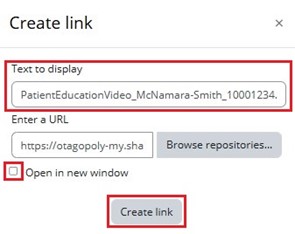
If it doesn't convert it into a link you can create one by:
- Highlight the link text and click on the Link icon (chain)

In the link settings:
-
Check Text to display: include your assignment title, surname, and student ID. Example: PatientEducationVideo_McNamara-Smith_10001234
-
Tick Open in a new window.
-
Click Update link
Note: If the assignment also requires a document (e.g. a reference document), upload it to the File submissions area within the submission page. The Online Text area is only for sharing links to videos from OneDrive.
3. Click Save changes.
4. When you're ready, click Submit assignment.
5. If prompted, click Continue to confirm and submit your work for grading.
Attributions
Hero image: Crumpled foil by Antoni Shkraba Studio. Licenced under a Pexels.com licence